
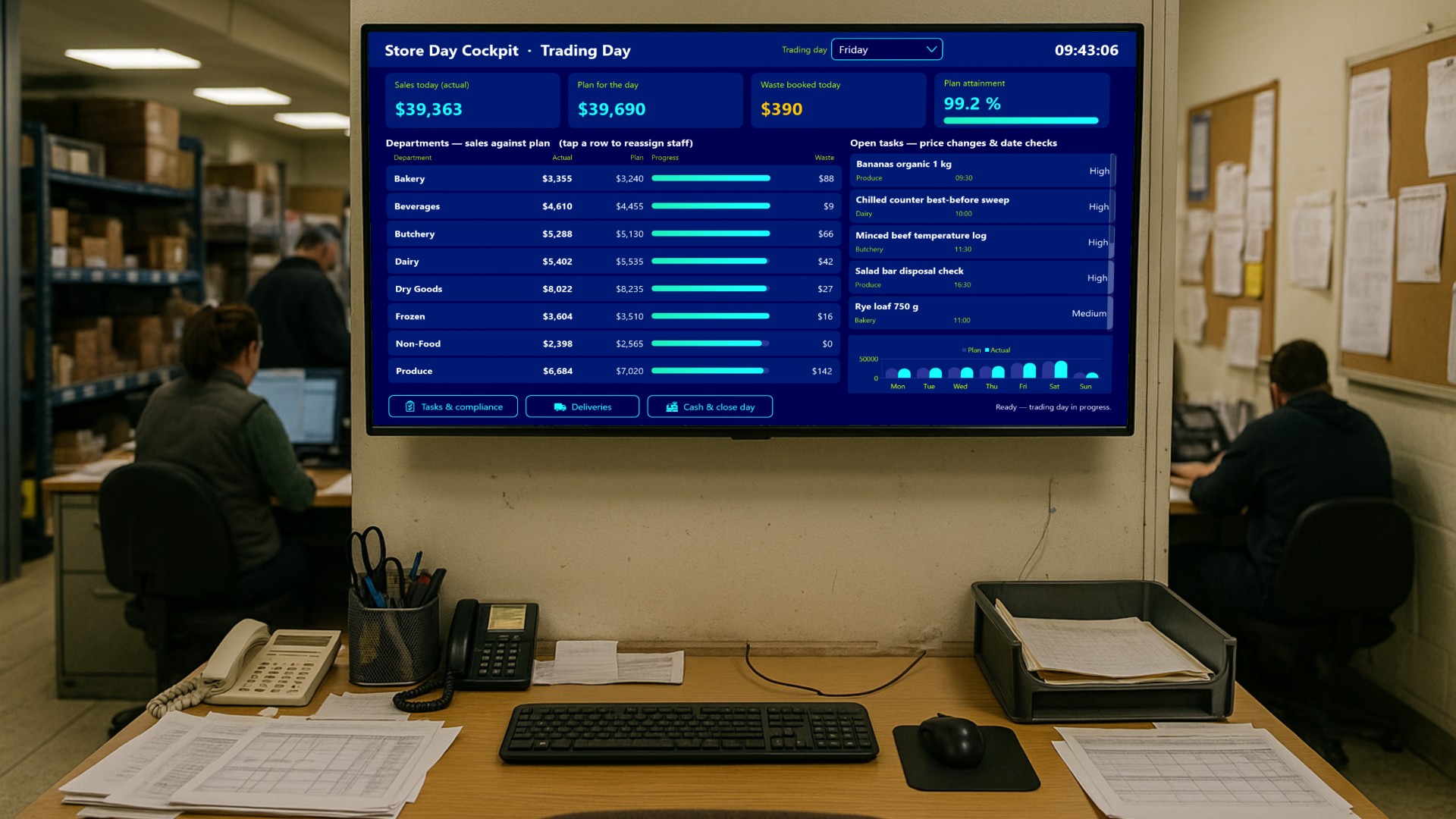
A supermarket store manager spends the trading day walking. Sales floor, goods-in bay, back office, and around again. The numbers that actually steer that day - how each department is tracking against plan, who is on the floor right now, how much product is being written off, which price changes and date checks are still open, whether the morning deliveries matched their paperwork - normally live in four or five separate systems, and half of them are only reachable from a desktop PC in the office. So the manager walks back to the office, logs in, reads, walks out again, and by then the Friday afternoon rush in Produce has already happened.
Store Day Cockpit puts all of it on one touch screen. The important part is not that it shows the numbers - it is that the manager can act on them right there: move staff, record a markdown, sign off a compliance check, report a short delivery, close the till.
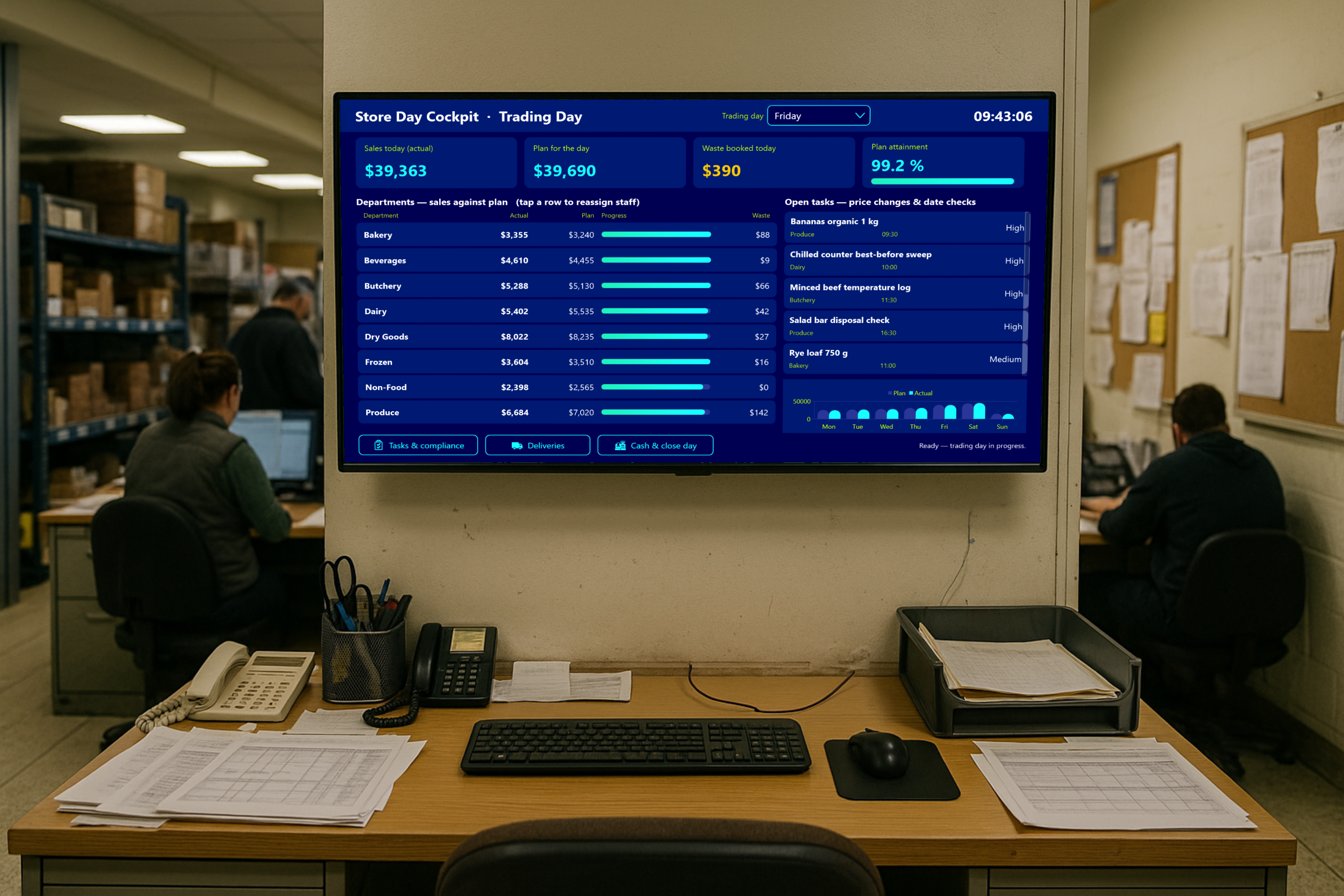
Built for standing use
The screen is designed for a wall-mounted or trolley-mounted 1920x1080 touch panel in the store office or the staff corridor behind the checkouts. Everything is sized for someone standing in front of it, possibly with a hand cart in the other hand: large KPI figures, buttons 60 to 70 pixels tall, generous list rows, and no keyboard needed for any of the common paths.
The trading-day overview
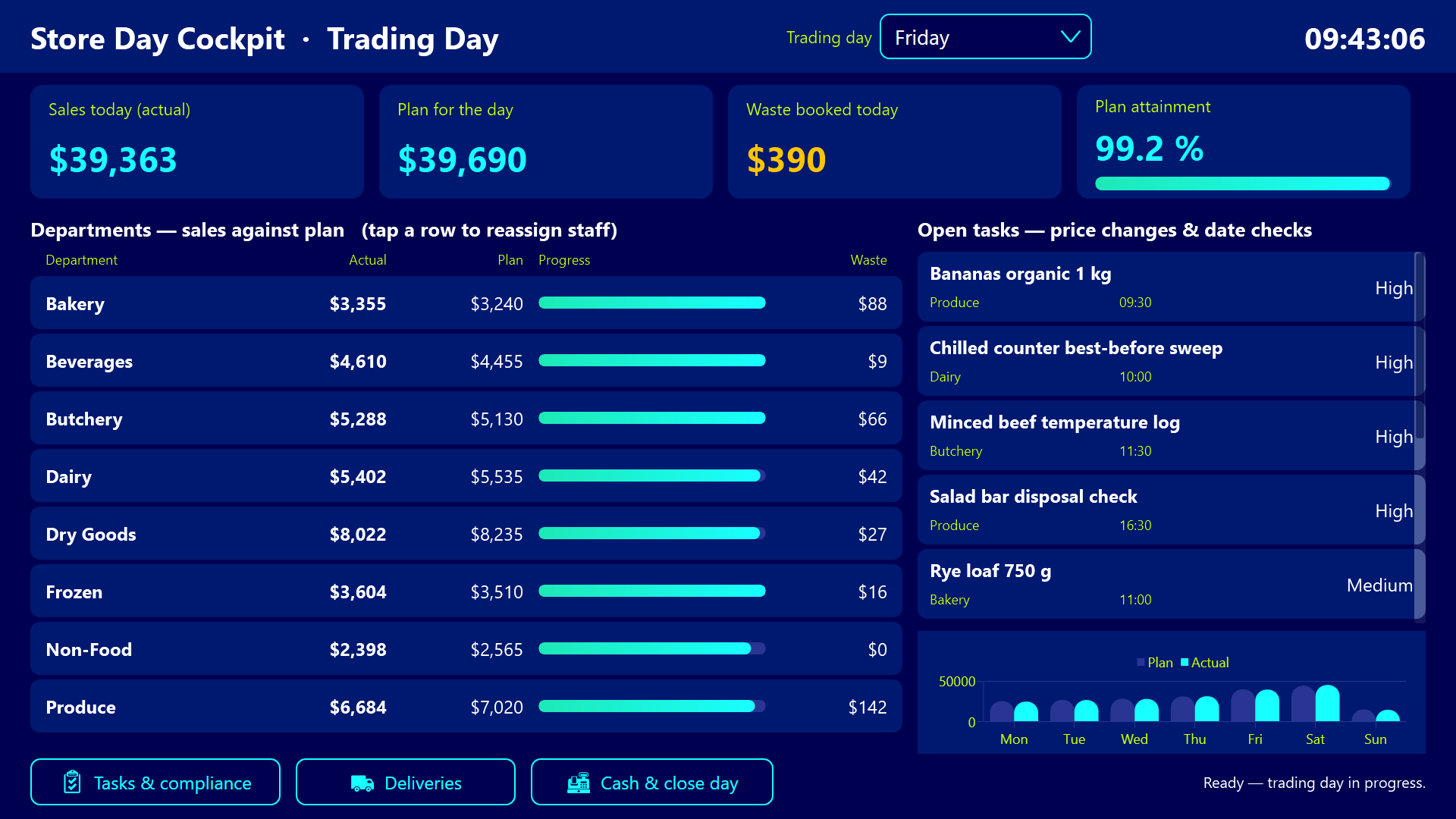
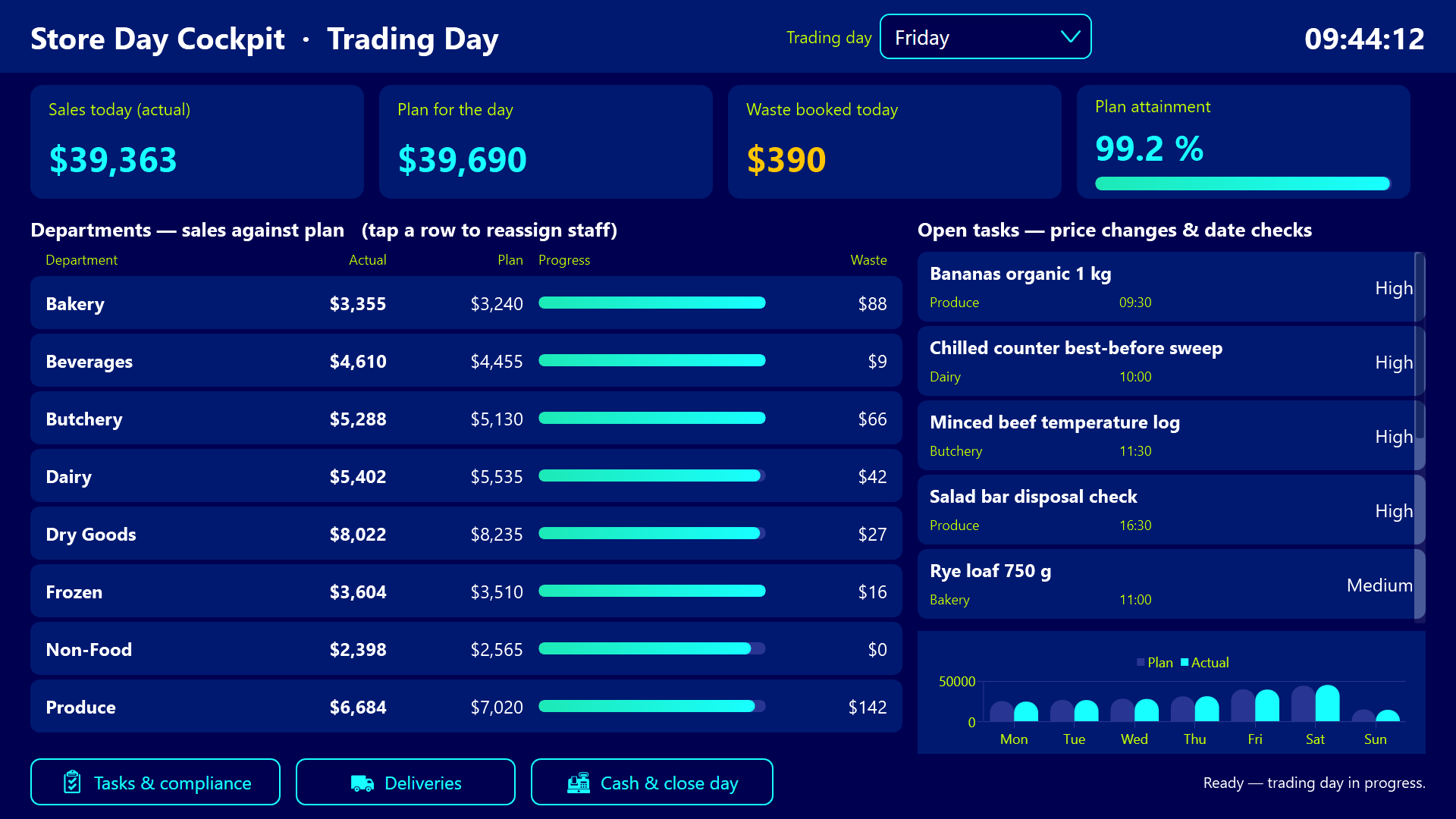
The day starts here. Four KPI cards across the top give the store’s actual sales, the plan for the day, the waste booked so far, and plan attainment as a percentage with a progress bar underneath.
Below that sit the eight selling departments - Produce, Bakery, Butchery, Dairy, Frozen, Beverages, Dry Goods and Non-Food - each with its actual, its plan, a horizontal progress gauge and its waste figure. A department that is falling behind is visible in a two-second glance, which is exactly how much attention a manager crossing the office has to spare.
On the right, the open task list shows price changes and date checks ordered by priority and due time. Underneath it, a weekday plan-versus-actual bar chart puts today into the context of the week, so a weak Friday morning can be read against how the whole week has been running.
Tapping a department moves people
Interaction is the point of this application. Tapping a department row opens the staffing dialog, where colleagues are physically dragged between an On the sales floor column and an Available / on break column.
If Produce is 8 percent behind plan on a Friday afternoon, the manager pulls two people across, confirms, and the move is written to the audit log immediately. No phone call to the office, no note on a clipboard that gets lost by 6pm.
Tapping a task opens the right tool
Tasks are not just a to-do list - each type routes to the tool that actually completes the job.
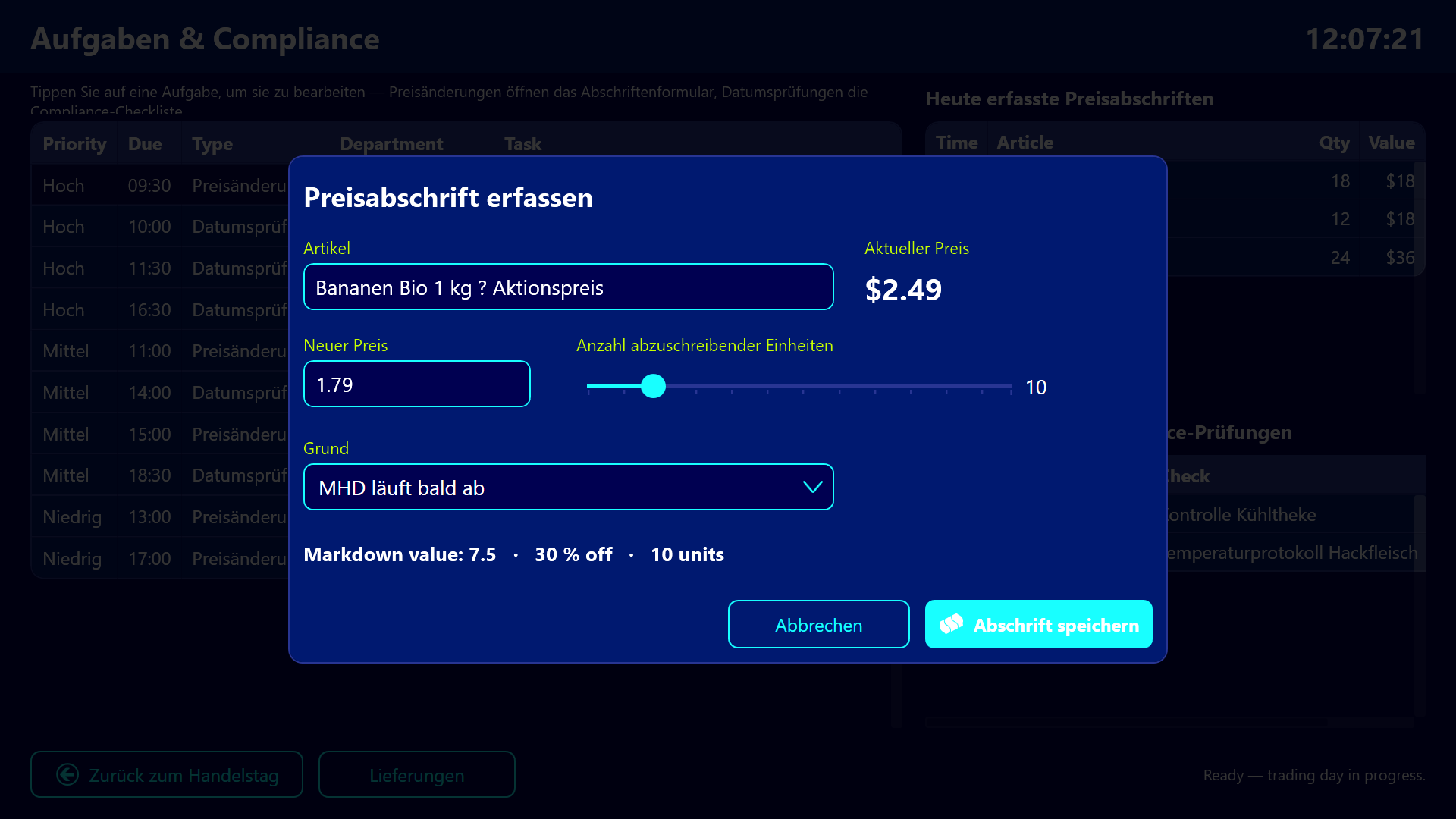
A price change opens a markdown form: the article is named, the new price is typed with validation, the number of units is set on a slider, and a reason is picked from a dropdown. The total markdown value recalculates live, so the manager sees what the decision costs before saving it.
A date check opens a compliance checklist with four mandatory checkpoints. The Complete check button stays greyed out until all four are ticked. The inspector and a free-text note are recorded together with the result, which is what turns a routine check into something that survives an audit.
Deliveries and discrepancies
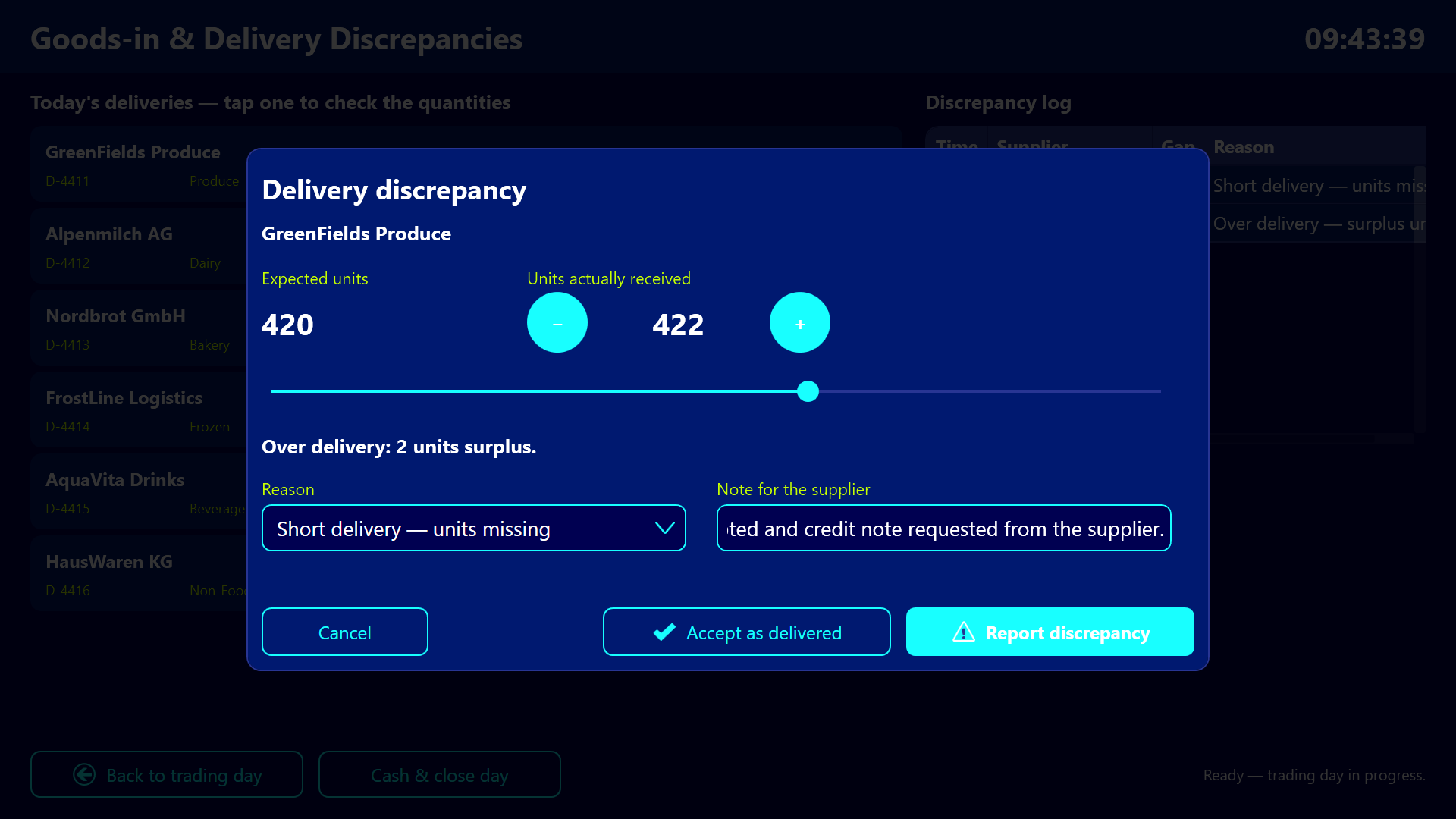
The deliveries screen lists the morning’s goods-in with expected versus received units. Tapping a line opens the discrepancy dialog, where the received count can be nudged with plus/minus buttons or dragged on a slider. The gap is shown live, and the manager either accepts the delivery as complete or reports the discrepancy with a reason and a note to the supplier.
That decision used to be a scribble on a delivery note that reached the back office days later, if at all. Here it is made at the bay, in front of the pallet.
Closing the day
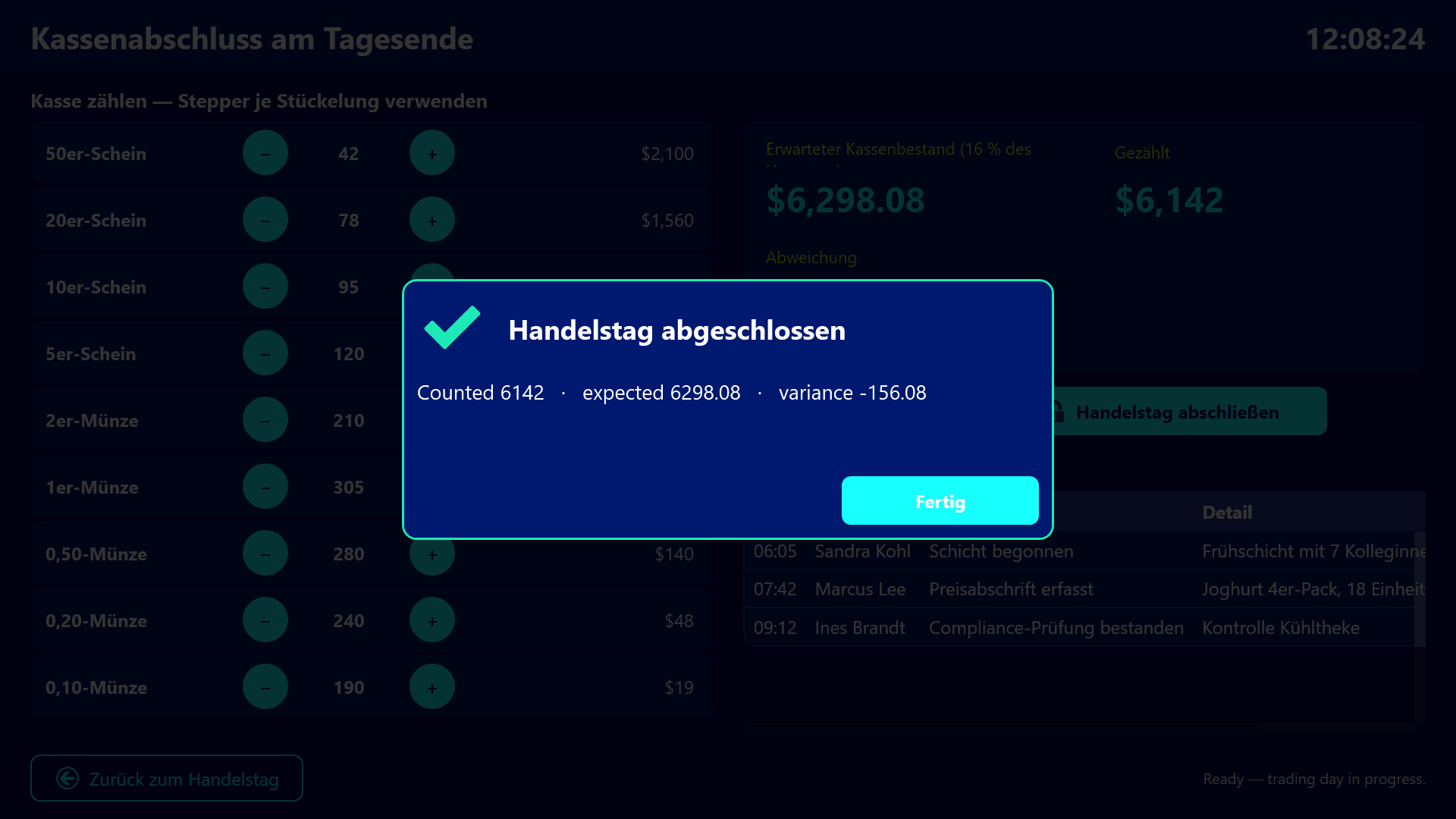
At the end of the trading day the cash screen is used to count the till. Each denomination from the 50 note down to the 10 cent coin has its own stepper. Line totals and the counted grand total recalculate on every tap, and the variance against the expected cash take is displayed prominently.
Closing the day is deliberately a two-step action. A confirmation dialog restates the summary, requires a closing manager to be selected, and requires an explicit acknowledgement checkbox to be ticked before the confirm button becomes clickable. Only then is the closing entry written and the success banner shown. Closing a trading day should take one more second of thought than tapping a button.
Everything lands in the log
Staff moved, staffing confirmed, markdown recorded, compliance check passed, delivery accepted, discrepancy reported, day closed - every action anywhere in the app lands in a running activity log with timestamp and actor. The store gets an audit trail of who did what during the trading day, produced as a by-product of normal work rather than as extra paperwork at the end of it.
The German variant
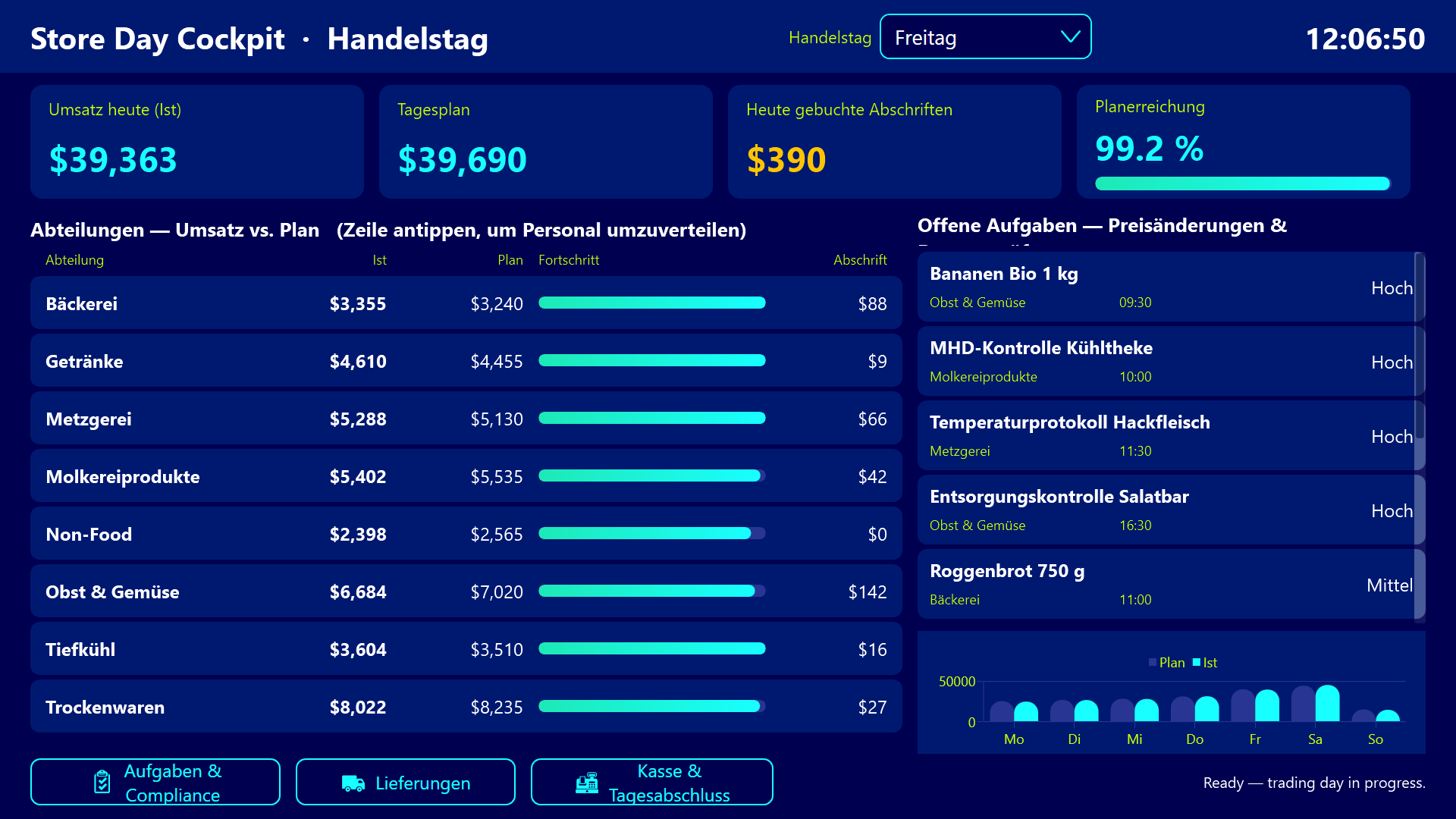
The same cockpit exists with German labels for stores in the DACH region. The layout, the dialogs and the sample data for eight departments over a week are identical.
Result
Store Day Cockpit collapses four or five back-office systems into one touch panel the manager passes a dozen times a day, and it turns reading into doing. Plan attainment, staffing, waste, tasks, deliveries and the cash count all live on the same screen, and every one of them can be acted on with a few taps - each action landing in an audit trail without anyone having to write it down.
The sample project ships with data for eight departments over a full week, so you can walk the whole trading day from the morning goods-in to the end-of-day close before wiring it to your own systems.