
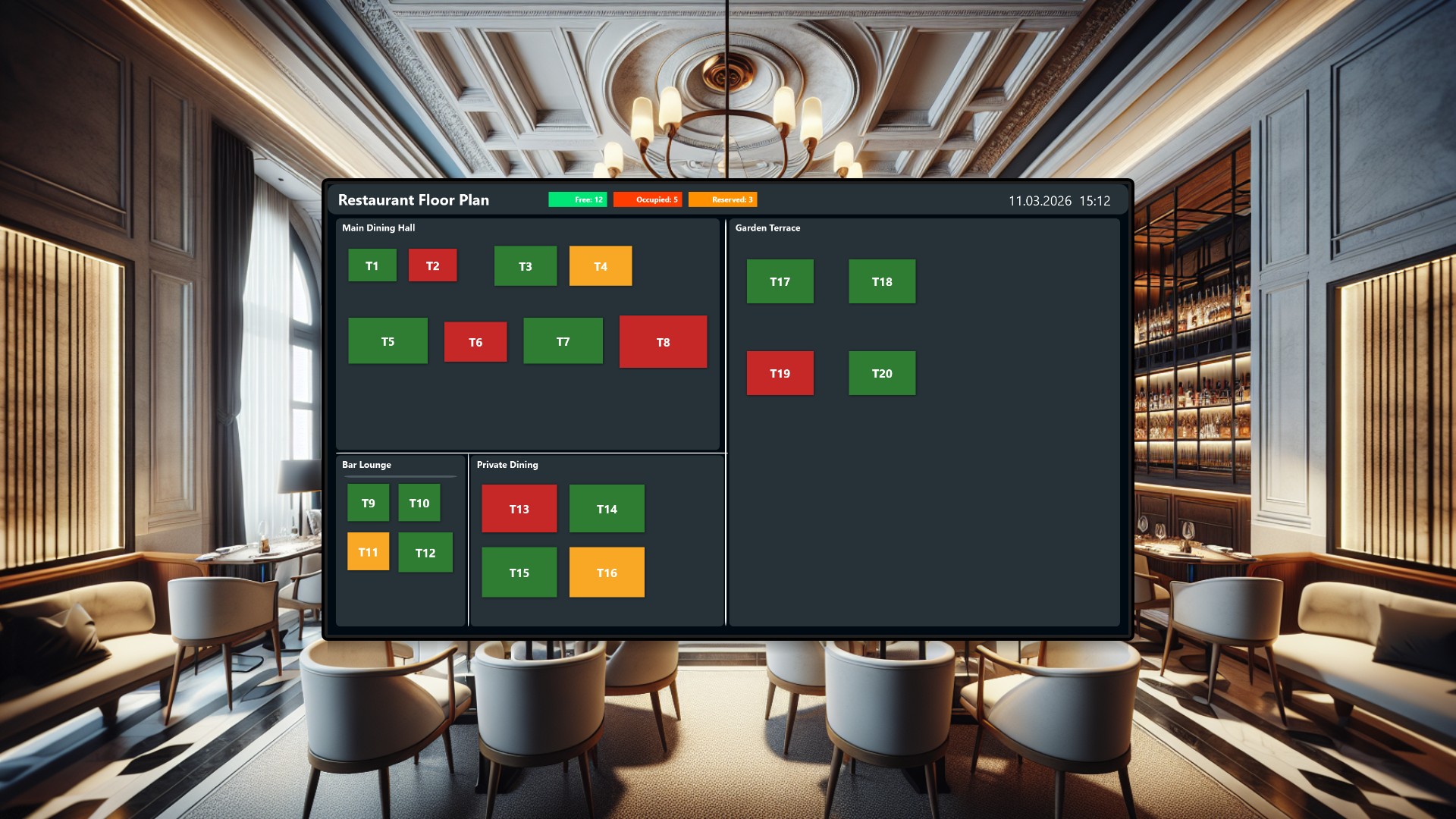
Running a busy restaurant with 20 tables spread across four areas is a coordination challenge. The host at the entrance needs to know which tables are free, which are occupied, and which are reserved - all without flipping through paper lists or yelling across the room. In this article, we build a live, interactive floor plan dashboard that turns table management from a memory game into a three-second glance at a color-coded map.
The problem with traditional table management
Most restaurants still rely on a mix of sticky notes, mental maps, and shared spreadsheets that nobody updates consistently. During a dinner rush, the host has to remember which of the 20 tables just cleared, whether the reservation for six at 7 PM was in the main hall or the private dining room, and if that couple by the window asked for the check ten minutes ago. Mistakes lead to double-bookings, empty tables that look occupied, and a growing queue of frustrated guests at the door.
The dashboard concept
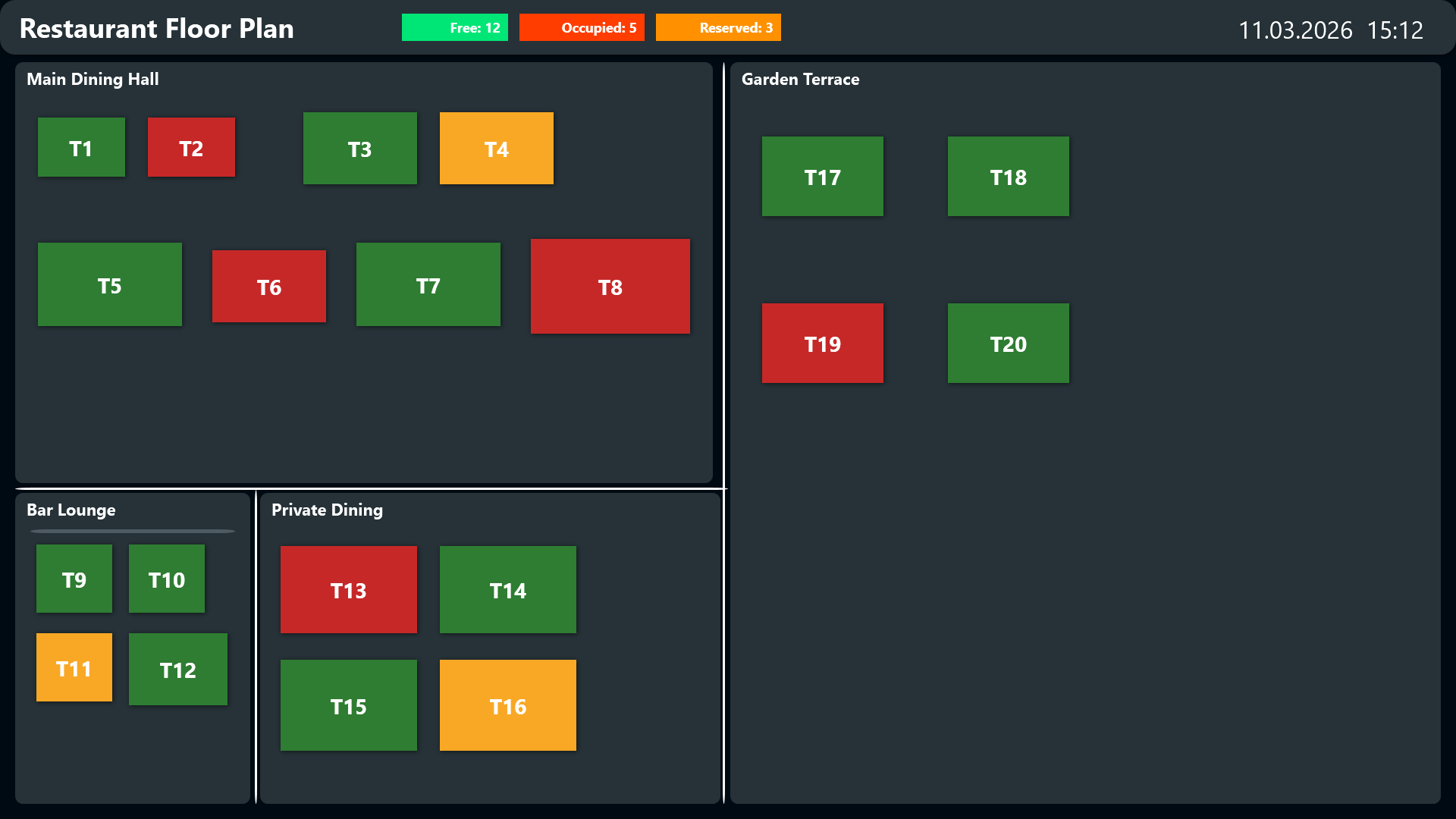
The solution is a touchscreen mounted at the host stand near the entrance. It displays a floor plan that mirrors the physical layout of the restaurant, divided into four clearly labeled zones:
- Main Dining Hall (upper left) - eight tables of varying sizes, from two-tops to eight-tops
- Bar Lounge (lower left) - four smaller tables in a cozy setting
- Private Dining (lower center) - four mid-to-large tables for groups and events
- Garden Terrace (right side) - four outdoor tables
Each table appears as a labeled rectangle. The background color tells you everything you need to know at a glance: green means free, red means occupied, and yellow means reserved. A header bar at the top shows the current date and time alongside a running tally of free, occupied, and reserved tables - so the host can judge overall availability without counting individual squares.
Seating a walk-in party
When guests arrive without a reservation, the workflow takes about five seconds. The host looks at the floor plan, spots a green table that fits the party size, taps it, and hits Seat. A small dialog pops up asking for the guest name and party size. After confirming, the table instantly flips from green to red, and the occupancy counter in the header updates. No paper, no radio calls, no guessing.
Handling reservations
Phone reservations follow a similar flow. The host taps the target table, hits Reserve, and fills in the guest name, party size, date, and time. The table turns yellow, and a booking entry is created automatically. When the reserved party arrives, one tap on Seat converts the reservation into an active seating, and the table switches from yellow to red.
The calendar view adds a layer of planning on top of the live map. Staff can open a weekly schedule for any table to see upcoming reservations. Tapping a booking in the calendar shows its full details - guest name, party size, start and end times. This makes it easy to plan ahead for busy nights or coordinate large group bookings across multiple tables in the Private Dining area.
Clearing a table
When a party leaves, the host taps the red table and hits Free. The table resets to green, the guest data is cleared, and the availability counter ticks up. The simplicity matters here - during a rush, every second counts, and a single tap is faster than crossing out a line on a paper chart.
Why this works in practice
The real value shows up during peak hours. Consider a typical Friday evening: the restaurant is at 80% capacity, three reservations are coming in within the next 30 minutes, and a party of six just walked in hoping for a table. Without the dashboard, the host has to mentally reconstruct the state of 20 tables, check a paper booking list, and make a judgment call under pressure. With the dashboard, one glance at the screen reveals two green tables in the Main Dining Hall, a yellow table in Private Dining that is reserved for 8 PM (still 45 minutes away), and three open spots on the Garden Terrace.
The color-coded system also prevents the most common hosting mistake: double-booking. When a table is yellow, everyone can see it is reserved. There is no ambiguity, no “I thought that was for tomorrow,” and no awkward moment when two parties show up expecting the same table.
Conclusion
This dashboard replaces guesswork with real-time visibility. Twenty tables across four areas, all managed from a single touchscreen at the entrance. The host sees the full picture at a glance, seats guests in seconds, handles reservations without paperwork, and keeps the dining room running smoothly even on the busiest nights. For any restaurant that has outgrown sticky notes but does not need a heavyweight reservation platform, this is a practical, low-overhead solution that pays off from day one.